AI Summaries
 Action Items
 AI Chat
 Teams & Collaboration
 Teams & Collaboration
 Integrations
  Blog
Blog  Guide
Guide 



Don't miss your meeting insights!
Transform your meetings into actionable insights. Upgrade today and enjoy 60% off, unlimited shared notes, AI-generated summaries, and real-time collaboration.
 12,716+ Customers
Buy at Discount
 Meeting Notes
 Today only — Enjoy higher transcription accuracy, team collaboration, and full meeting history.Meeting Notes
 Remote & Hybrid Work
 Legal & Compliance
 Sales & CRM
 Healthcare
 Project Management
 HR & Recruitment
 Education & Online Learning
 Personal ProductivityToday only — Enjoy higher transcription accuracy, team collaboration, and full meeting history.
Action items refer to specific tasks or items that are clearly assigned and require follow-up execution in meetings, discussions, plans, or projects. Simply put, action items need a clear responsible person, a deadline, and should be trackable.
In MeetingNotes, action items are linked to the meeting. If you delete the meeting, the corresponding action items under that meeting will also be deleted.
To learn more about action items, you need to log in to MeetingNotes and enter your workspace. Then click on "Action items" in the left-hand menu to access the Action Items page.
Adding a new action item is very simple. On the Action Items page, select a meeting, expand it, and then click the "Add New Task" button to add a new action item.
Then fill in the details of the action item.
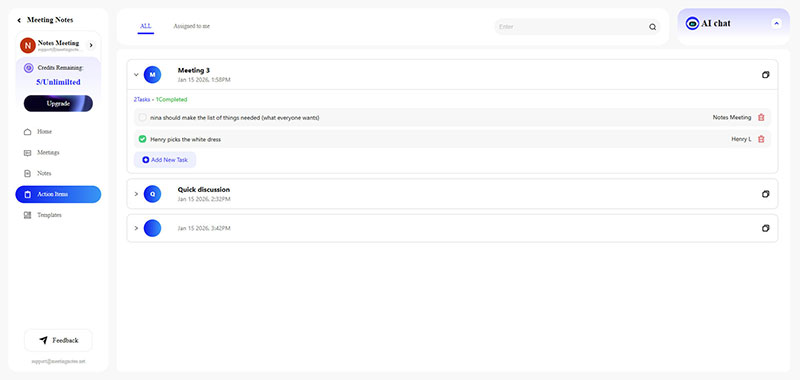
After adding the action items, click the "Assign" button at the end of the task to select a responsible person from the meeting participants.
To unassign a person, simply click the "Assign" button again and select "Unassigned."
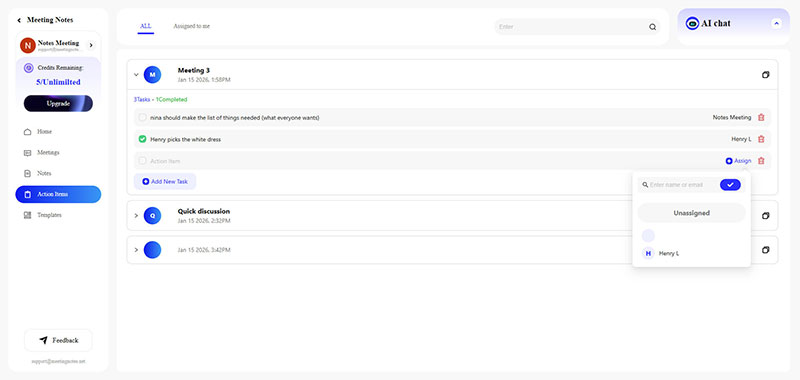
What does "Assign to me" mean? As the name suggests, it refers to tasks that you are responsible for handling. In MeetingNotes, "Assign to me" is a convenient way to quickly find the action items assigned to you.
You can also check here whether your action items have been completed.
Each action item is added with a default status of incomplete. If an action item is completed, simply click the small square box next to it. When the box turns green, it indicates that the task has been completed, and the count in the "Completed" section will increase by one.
Deleting Action Items is also very simple. To the right of the Assign button is an icon that looks like a trash can, which represents deletion. After clicking the delete option, the Action Item will be deleted within a few seconds.
Note: Deleted Action Items cannot be recovered; you can only add them again.