AI Summaries
 Action Items
 AI Chat
 Teams & Collaboration
 Teams & Collaboration
 Integrations
  Blog
Blog  Guide
Guide 



Don't miss your meeting insights!
Transform your meetings into actionable insights. Upgrade today and enjoy 60% off, unlimited shared notes, AI-generated summaries, and real-time collaboration.
 12,716+ Customers
Buy at Discount
 Meeting Notes
 Today only — Enjoy higher transcription accuracy, team collaboration, and full meeting history.Meeting Notes
 Remote & Hybrid Work
 Legal & Compliance
 Sales & CRM
 Healthcare
 Project Management
 HR & Recruitment
 Education & Online Learning
 Personal ProductivityToday only — Enjoy higher transcription accuracy, team collaboration, and full meeting history.
Step 1. Sign in to your Zoom account at the official website of Zoom.
Step 2. Open the Zoom App Marketplace and locate the MeetingNotes app page.
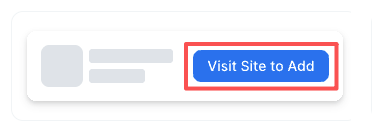
Step 3. Click “Visit Site to Add”.
Step 4. You will be redirected to MeetingNotes.
Step 5. Sign in and authorize your Zoom account to complete the setup.
This app uses the “Visit Site to Add” authorization flow. If authorization is required, you will be redirected to a secure Zoom authorization page.
Step 1. Sign in to your Zoom account at the official website of Zoom.
Step 2. Go to Zoom App Marketplace, then choose Manage.
Step 3. Locate MeetingNotes under Installed Apps.
Step 4. Click Remove to disconnect the app.
Removing the app will revoke its access to your Zoom account.
Note: The application is currently under review and not yet publicly listed. Screenshots are for instructional purposes only.
Connecting to Zoom and successfully creating a Zoom meeting on MeetingNotes is a simple process that only takes a few steps.
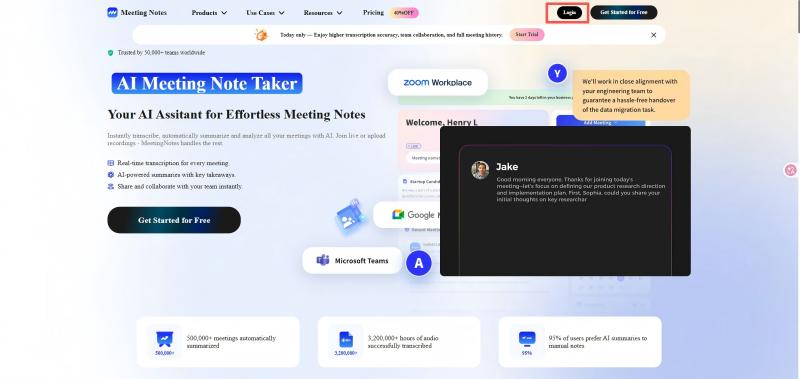
Step 1. Log in to MeetingNotes
First, log in to your MeetingNotes account and enter your workspace.
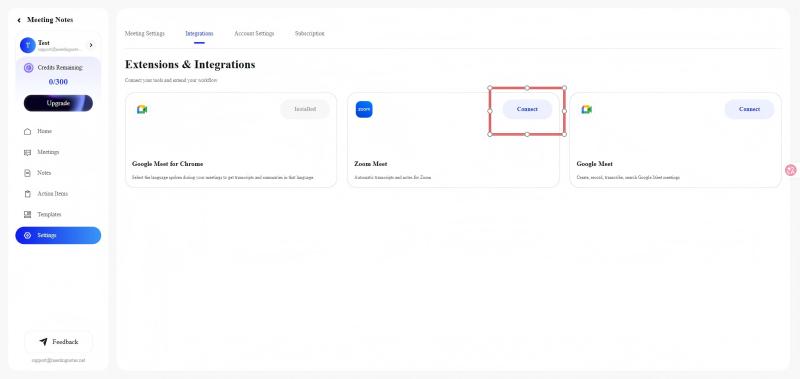
Step 2. Select Zoom Integration
Next, click on the Settings section on the left, and then click Integrations to enter the Extensions & Integrations page.
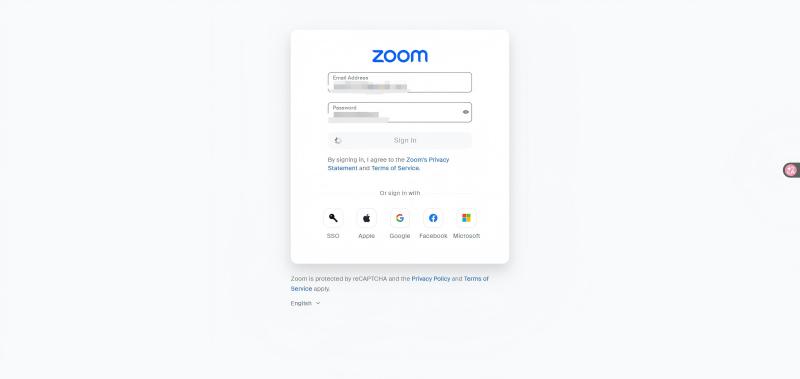
Step 3. Log in to your Zoom account
Enter your Zoom account to log in.
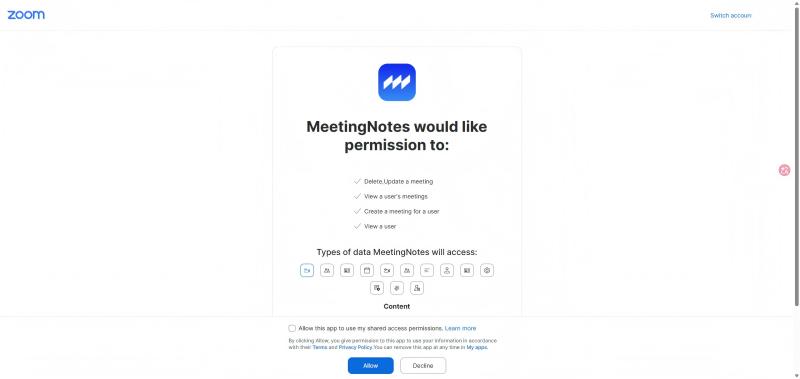
MeetingNotes will then display information requiring your authorization; click the Agree button. Finally, you will be redirected back to MeetingNotes, and Zoom will have successfully connected.
Step 4. Create a Zoom meeting
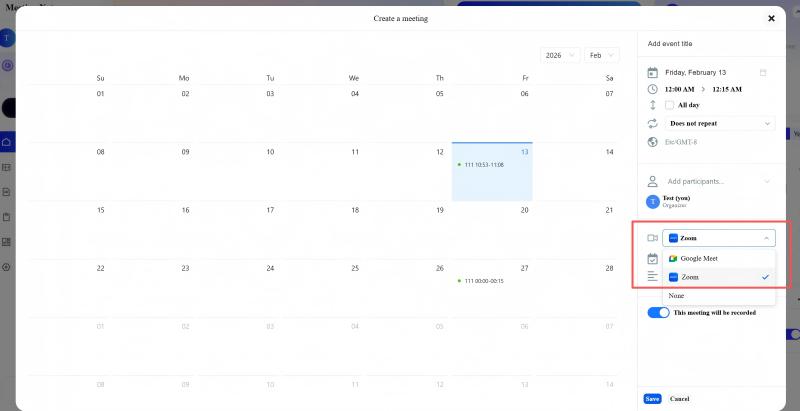
In the MeetingNotes workspace, click the Add Meeting button and select Create a meeting.
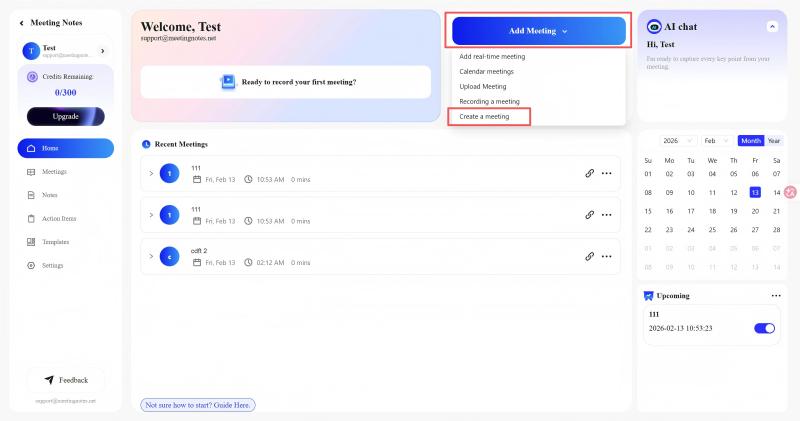
Then, in the newly appeared Create Meeting pop-up window, select the time, enter the meeting name, and choose to create the meeting from Zoom.