AI Summaries
 Action Items
 AI Chat
 Teams & Collaboration
 Teams & Collaboration
 Integrations
  Blog
Blog  Guide
Guide 



Don't miss your meeting insights!
Transform your meetings into actionable insights. Upgrade today and enjoy 60% off, unlimited shared notes, AI-generated summaries, and real-time collaboration.
 12,716+ Customers
Buy at Discount
 Meeting Notes
 Today only — Enjoy higher transcription accuracy, team collaboration, and full meeting history.Meeting Notes
 Remote & Hybrid Work
 Legal & Compliance
 Sales & CRM
 Healthcare
 Project Management
 HR & Recruitment
 Education & Online Learning
 Personal ProductivityToday only — Enjoy higher transcription accuracy, team collaboration, and full meeting history.
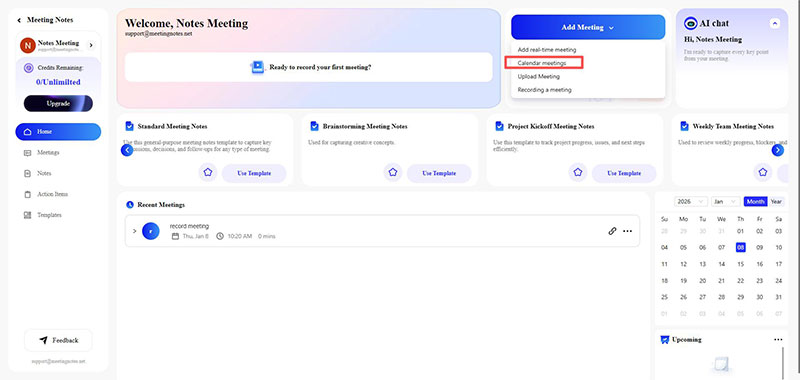
On the control panel, click the "Add Meeting" button and select "Calendar Meetings" from the drop-down menu.
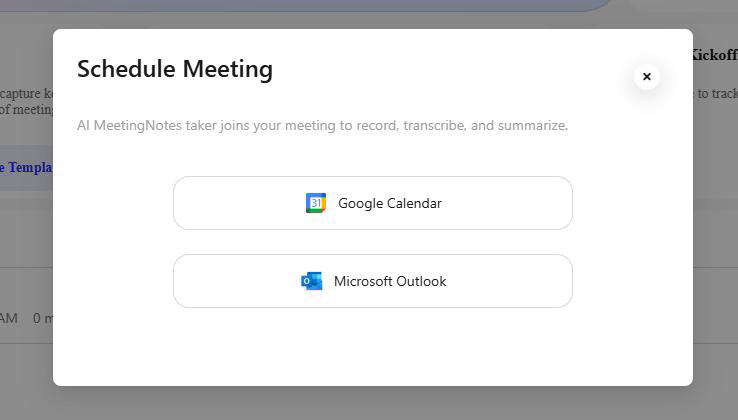
In the newly opened "Schedule Meeting" window, select “Google Calendar” you want to authorize.
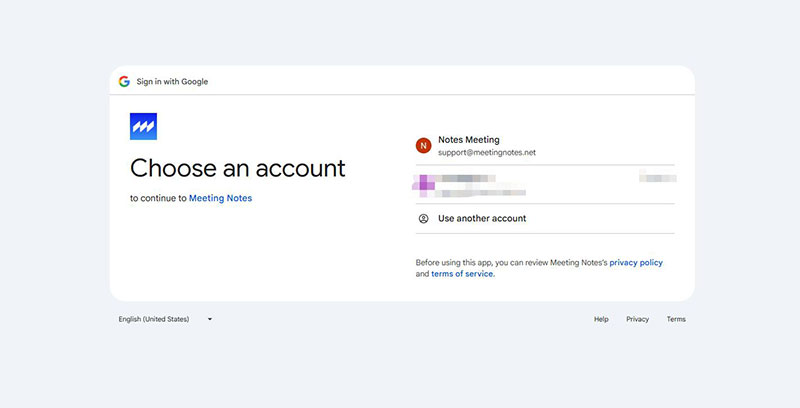
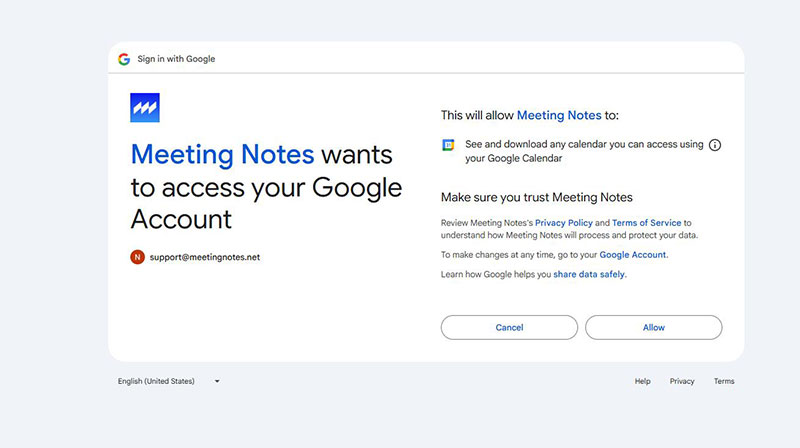
Clicking on Google Calendar will redirect you to the Google Calendar authorization page. You will first need to log in to your Google account.
Note: Your MeetingNotes account can be different from the Google account you need to authorize, but we recommend using the same account.
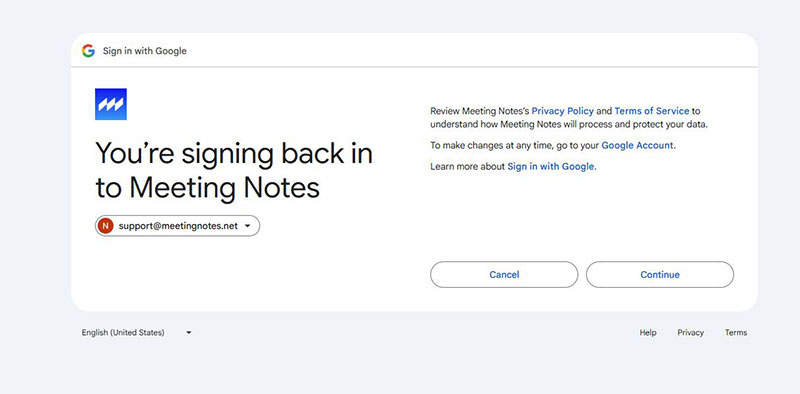
Next, click the Continue button to continue authorizing Google Calendar so that you can successfully view your Google Calendar schedule on MeetingNotes.
Then click Allow to complete the authorization.
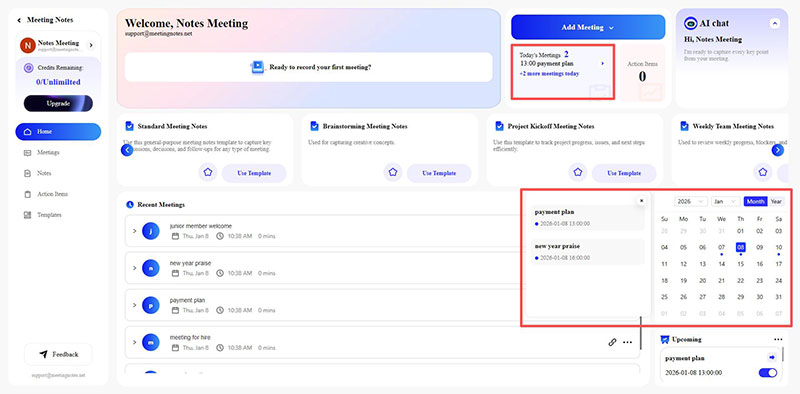
Finally, the page will automatically redirect back to the MeetingNotes. At this point, your meeting schedule for today will be displayed under Today's Meetings. Dates with scheduled meetings in the calendar will be marked with a blue dot. Click on the corresponding date to view the detailed schedule.