AI Summaries
 Action Items
 AI Chat
 Teams & Collaboration
 Teams & Collaboration
 Integrations
  Blog
Blog  Guide
Guide 



Don't miss your meeting insights!
Transform your meetings into actionable insights. Upgrade today and enjoy 60% off, unlimited shared notes, AI-generated summaries, and real-time collaboration.
 12,716+ Customers
Buy at Discount
 Meeting Notes
 Today only — Enjoy higher transcription accuracy, team collaboration, and full meeting history.Meeting Notes
 Remote & Hybrid Work
 Legal & Compliance
 Sales & CRM
 Healthcare
 Project Management
 HR & Recruitment
 Education & Online Learning
 Personal ProductivityToday only — Enjoy higher transcription accuracy, team collaboration, and full meeting history.
Note: Your MeetingNotes account and the email address associated with your paid subscription should be the same.
If you have successfully subscribed to a paid MeetingNotes plan but do not wish to renew, you can cancel automatic renewal at any time. The steps are simple.
However, we do not recommend canceling automatic renewal, as MeetingNotes will continue to be updated and optimized, adding more advanced features. As long as you are within your subscription period, you can enjoy these advanced features for free without additional payment.
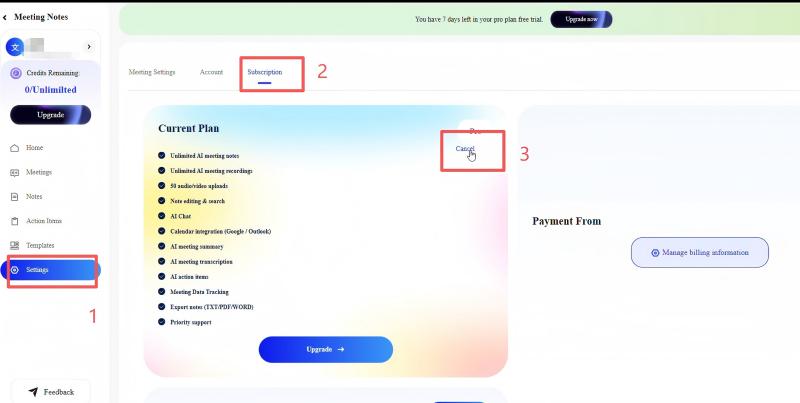
Step 1. First, log in to your MeetingNotes account, then enter the workspace.
Step 2. Click on Settings in the left-hand menu, or click on your account and select Account from the dropdown menu.
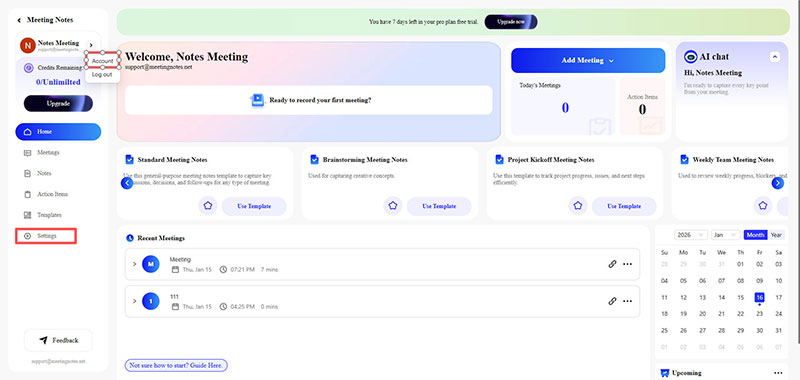
Step 3. On the Settings page, click on the Subscription option at the top to enter Subscription settings.
Step 4. Click the Cancel button in the lower right corner of Current Plan.
If you have any questions, please feel free to contact us: [email protected]
If you change your mind and want to continue using the MeetingNotes service, you can directly choose to restore your subscription. MeetingNotes will then automatically charge the renewal fee for your current plan in the next billing cycle.
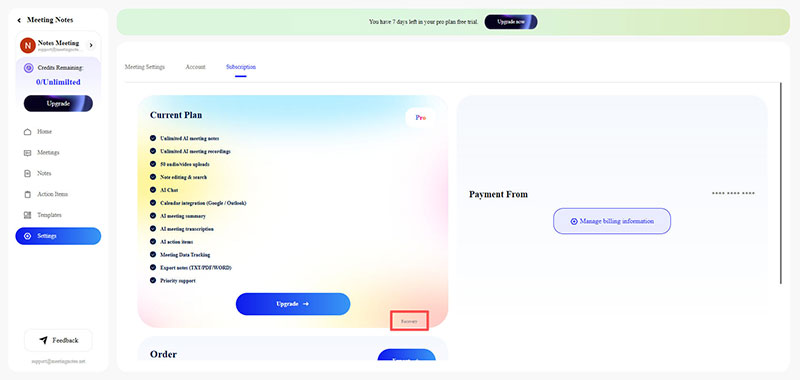
Step 1. First, log in to your MeetingNotes account, then enter your workspace.
Step 2. Click on Settings in the left-hand menu, or click on your account and select Account from the dropdown menu.
Step 3. On the Settings page, click on the Subscription option at the top to enter Subscription settings.
Step 4. Click the Recovery button in the lower right corner of Current Plan.
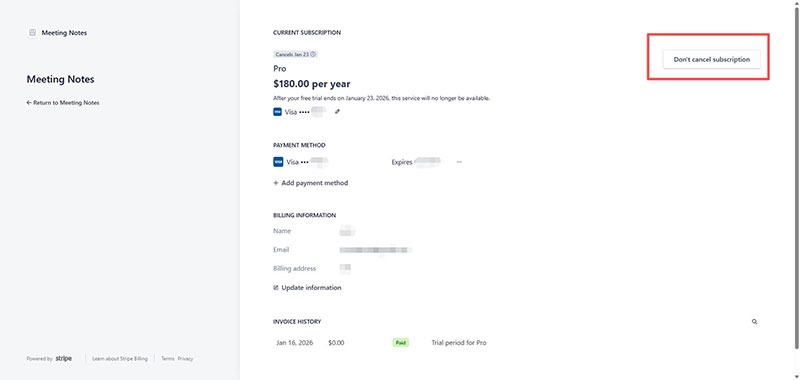
Step 5. On the Stripe page, click the Don't cancel subscription button and confirm the restoration of renewal.
If you have any questions, please feel free to contact us: [email protected]
If your current plan does not meet your needs for using MeetingNotes, don't worry, MeetingNotes provides a quick plan upgrade process to meet your immediate needs.
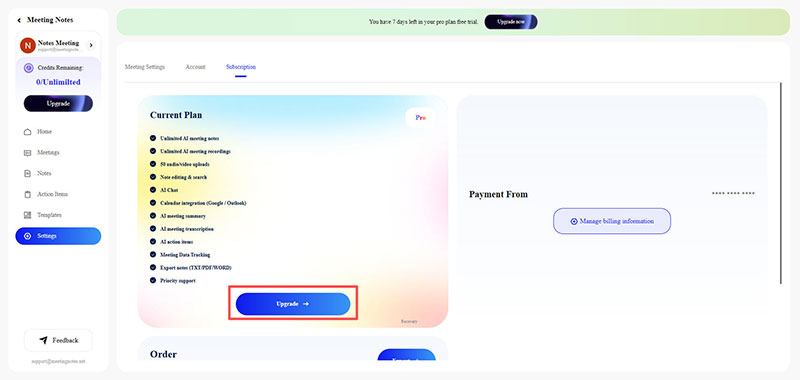
Step 1. First, log in to your MeetingNotes account, then enter your workspace.
Step 2. Click on Settings in the left-hand menu, or click on your account and select Account from the dropdown menu.
Step 3. On the Settings page, click on the Subscription option at the top to enter Subscription settings.
Step 4. Click the Upgrade button in Current Plan and confirm the upgrade.
Note: In fact, any Upgrade button on the page can be clicked.
If you have any questions, you can contact us at any time: [email protected]
If your current plan far exceeds your current needs, don't worry, you can contact our customer support team to request a plan downgrade: [email protected].
However, we recommend that you do not downgrade your plan, as our product will continue to be updated and optimized with more advanced features. As long as you are within your current plan's subscription period, you can enjoy the use of these advanced features for free without additional payment.
NOTE:
1. The plan downgrade will take effect from the next billing cycle.
2. To provide the best user experience for every user, our customer support team will do their best to resolve any issues you encounter.
3. Sometimes, due to a large volume of inquiries, there may be delays in our response. Please be patient. Thank you for your understanding and support.