AI Summaries
 Action Items
 AI Chat
 Teams & Collaboration
 Teams & Collaboration
 Integrations
  Blog
Blog  Guide
Guide 



Don't miss your meeting insights!
Transform your meetings into actionable insights. Upgrade today and enjoy 60% off, unlimited shared notes, AI-generated summaries, and real-time collaboration.
 12,716+ Customers
Buy at Discount
 Meeting Notes
 Today only — Enjoy higher transcription accuracy, team collaboration, and full meeting history.Meeting Notes
 Remote & Hybrid Work
 Legal & Compliance
 Sales & CRM
 Healthcare
 Project Management
 HR & Recruitment
 Education & Online Learning
 Personal ProductivityToday only — Enjoy higher transcription accuracy, team collaboration, and full meeting history.
The meeting referred to in the MeetingNotes is not a meeting that was directly created, but rather a meeting record that was created, a record of a meeting where an AI Meeting Note Taker participated, capable of transcribing the meeting in real time and generating AI summary of the meeting.
First, invite the MeetingNotes AI Taker to the live meeting.
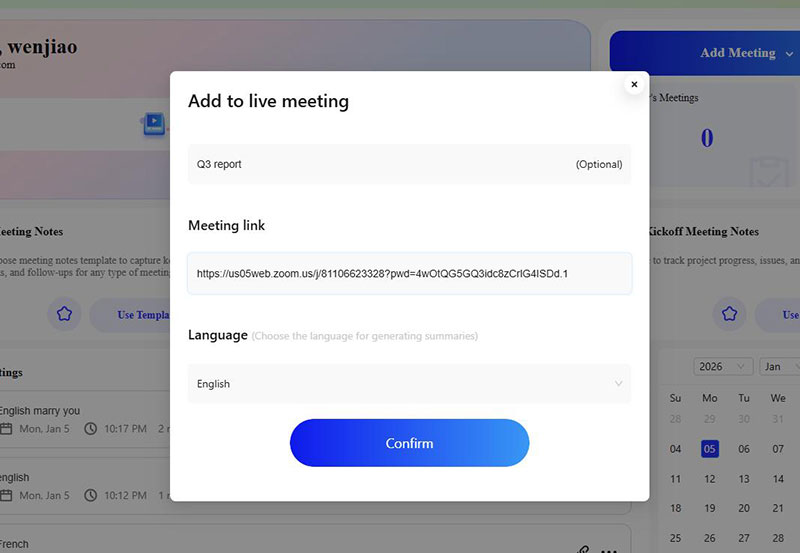
Next, on the control panel, click Live Notes to enter the real-time recording page. Then click the option Plus in the upper right corner.
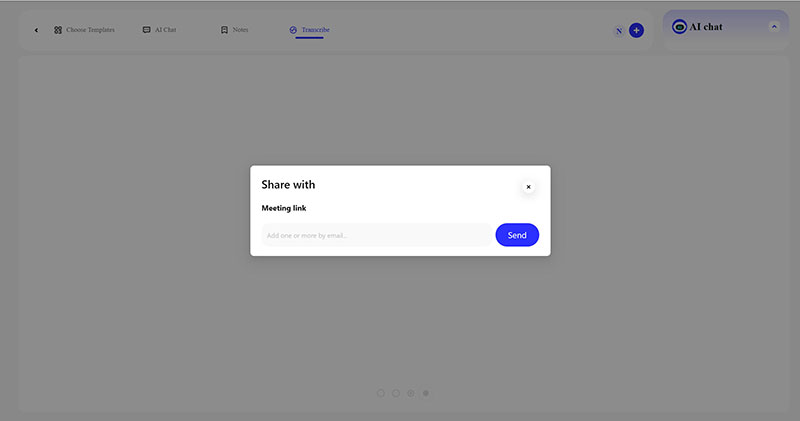
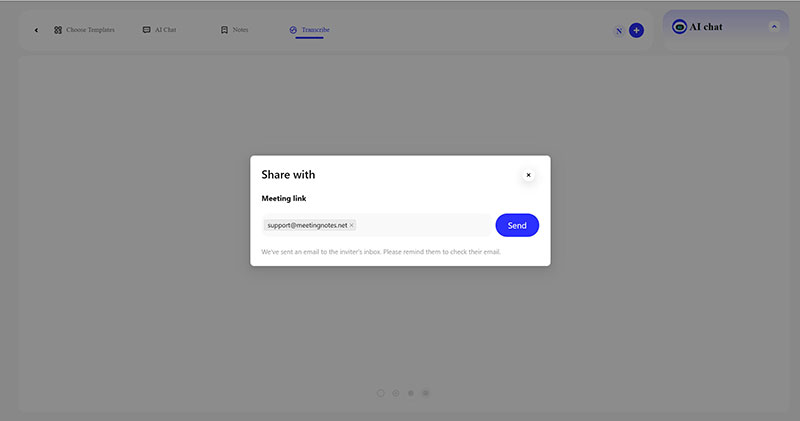
Next, enter the email addresses of the invited participants and click the Send button. The invited participants will receive an email inviting them to join the meeting, and they can successfully join the ongoing meeting by logging into MeetingNotes.
First, log in to your MeetingNotes account and access the meeting notes interface. Then, click on "Meeting" in the left-hand menu to go to the All Meetings page.
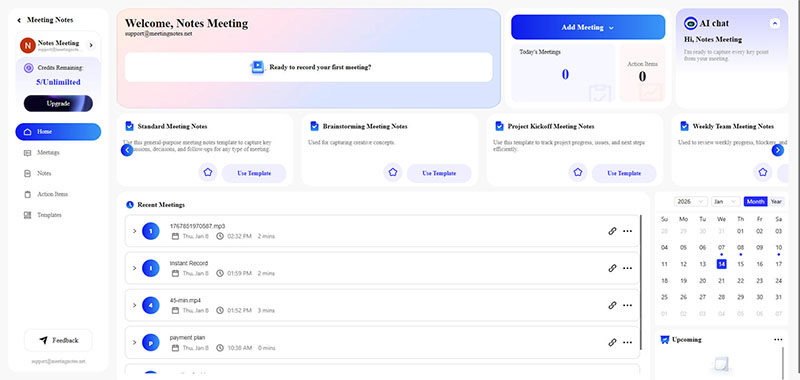
Find the meeting you want to share and click the Plus sign option to open the Meeting Link sharing window. Then, enter the email address of the person you want to invite in the pop-up and click the "Send" button.
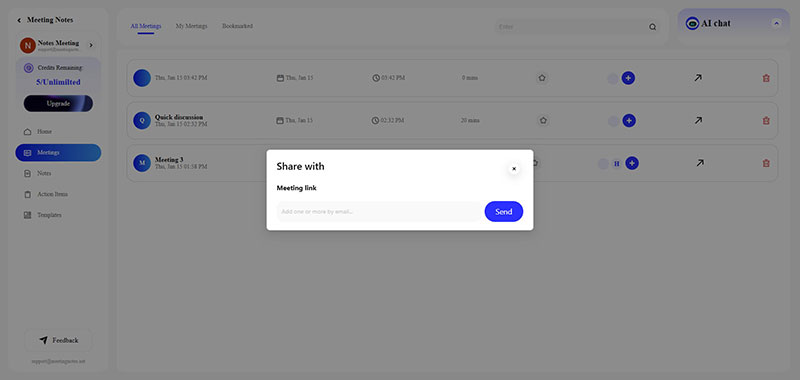
The invited person will then receive an email from MeetingNotes inviting them to join the meeting. They simply need to log in to MeetingNotes to successfully join the meeting.
If you're using MeetingNotes solely for personal use to easily record the meetings you attend, allowing you to focus on the meeting itself, or if you're using MeetingNotes to transcribe classroom content, you can certainly keep it private and use it only for your own convenience.
However, if you're discussing the progress of a project in a team or group meeting, it's best to share the meeting notes from MeetingNotes with your team members. Here's why:
1. View real-time meeting transcripts
2. Collaborate on notes together
3. Synchronize meeting results to avoid further communication
4. Obtain an accurate AI summary after the meeting ends