AI Summaries
 Action Items
 AI Chat
 Teams & Collaboration
 Teams & Collaboration
 Integrations
  Blog
Blog  Guide
Guide 



Don't miss your meeting insights!
Transform your meetings into actionable insights. Upgrade today and enjoy 60% off, unlimited shared notes, AI-generated summaries, and real-time collaboration.
 12,716+ Customers
Buy at Discount
 Meeting Notes
 Today only — Enjoy higher transcription accuracy, team collaboration, and full meeting history.Meeting Notes
 Remote & Hybrid Work
 Legal & Compliance
 Sales & CRM
 Healthcare
 Project Management
 HR & Recruitment
 Education & Online Learning
 Personal ProductivityToday only — Enjoy higher transcription accuracy, team collaboration, and full meeting history.
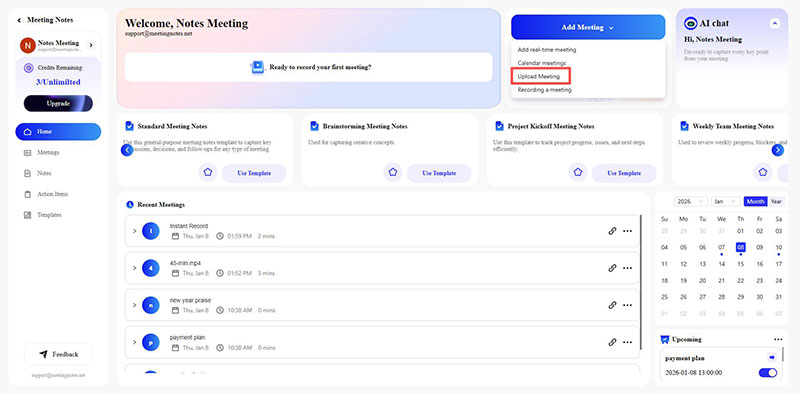
On your control panel, click the Add Meeting button and select Uploading Meeting from the drop-down menu.
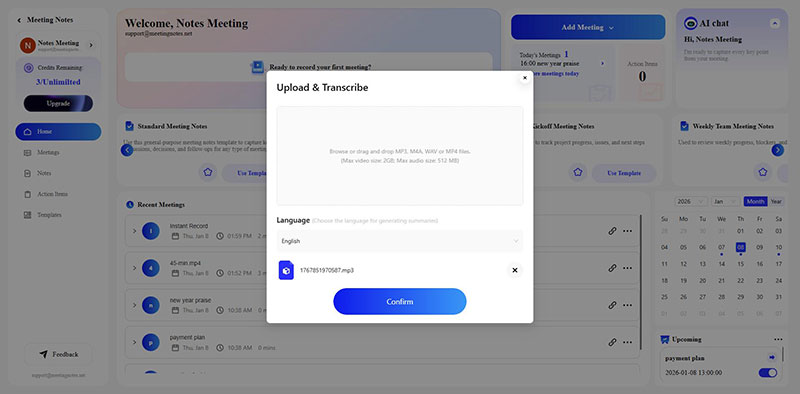
In the newly appeared Upload & Transcribe pop-up window, click the gray box to upload meeting files from local, or simply drag and drop the files into the gray box. Then select the language used in the meeting.
• MeetingNotes currently supports MP3, M4A, WAV, or MP4 formats. Video cannot exceed 2GB, and audio cannot exceed 512MB.
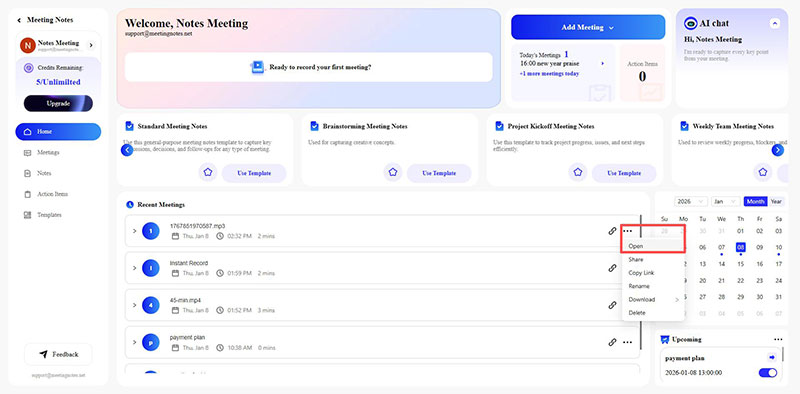
After clicking the Confirm button, the pop-up window will close. You will then be able to find the meeting record named after the file you uploaded in Recent Meetings. Click the menu, select Open, and go to the meeting details page.
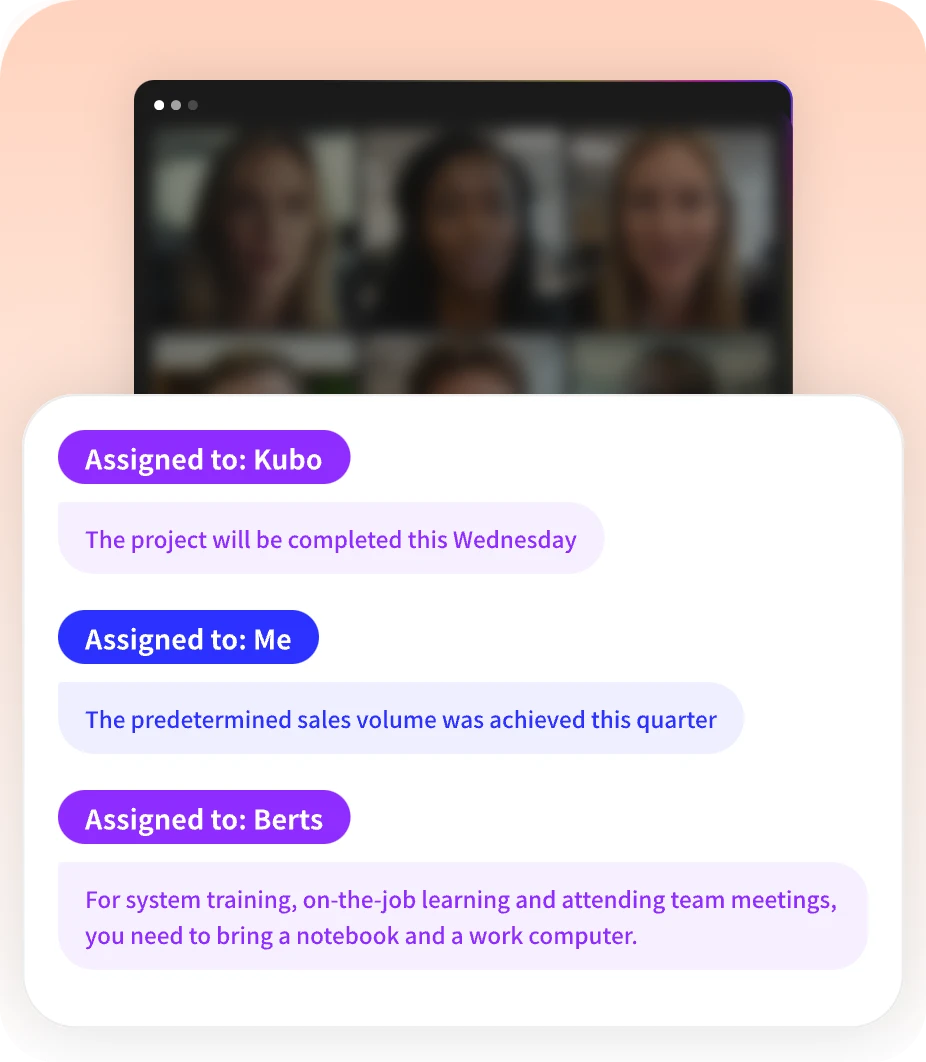
The left side displays the AI Summary generated by MeetingNotes, while the right side shows the transcript of the meeting.
You can manually edit and save the AI Summary by clicking it, add notes to the meeting by clicking Notes, and view the number of times the meeting minutes have been viewed and who viewed them by clicking Stats.