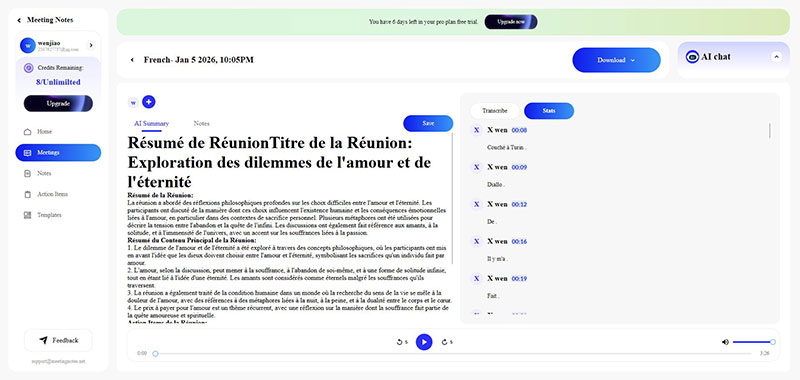
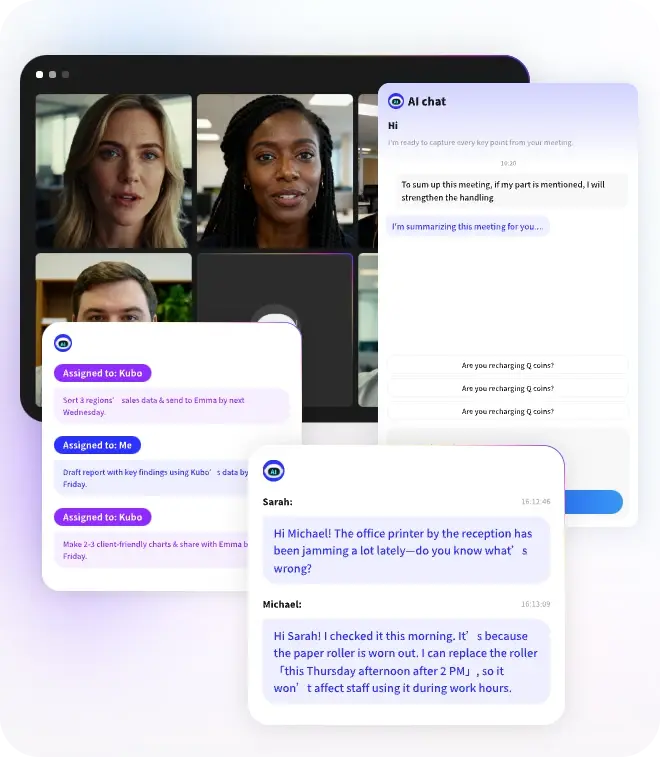
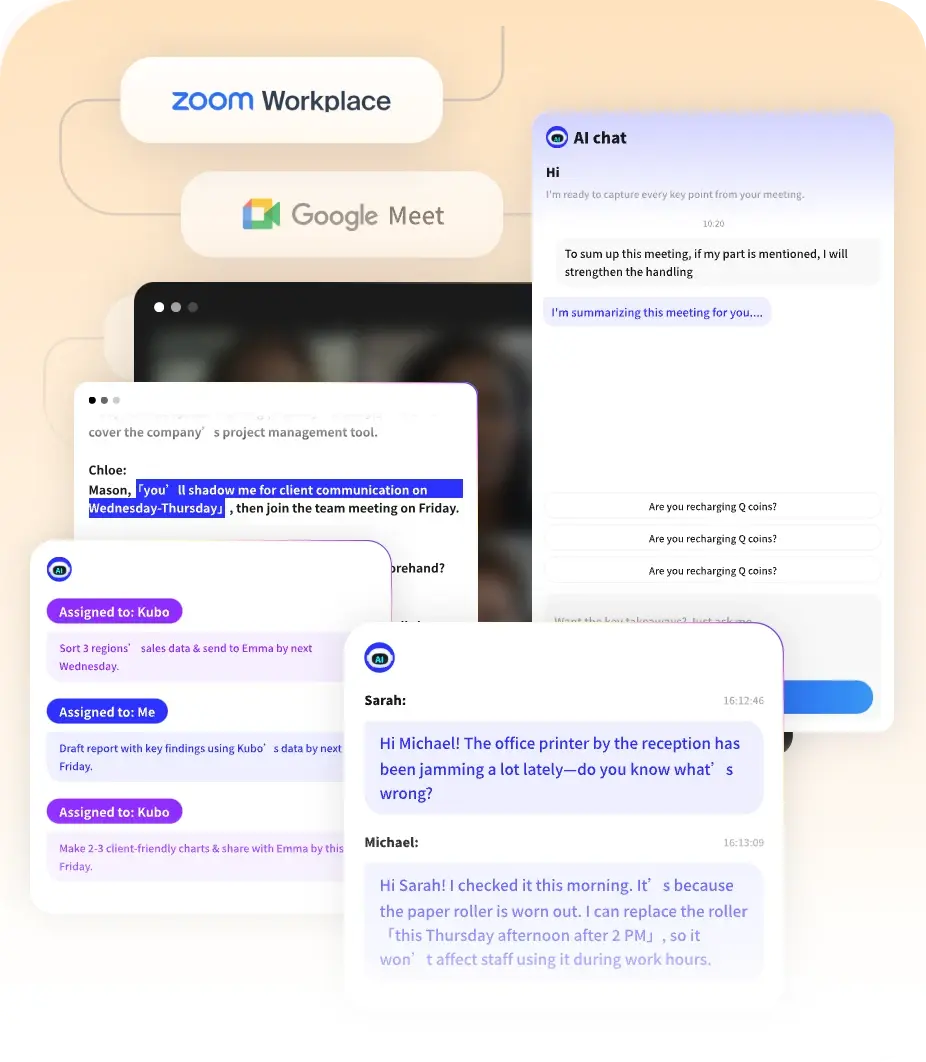
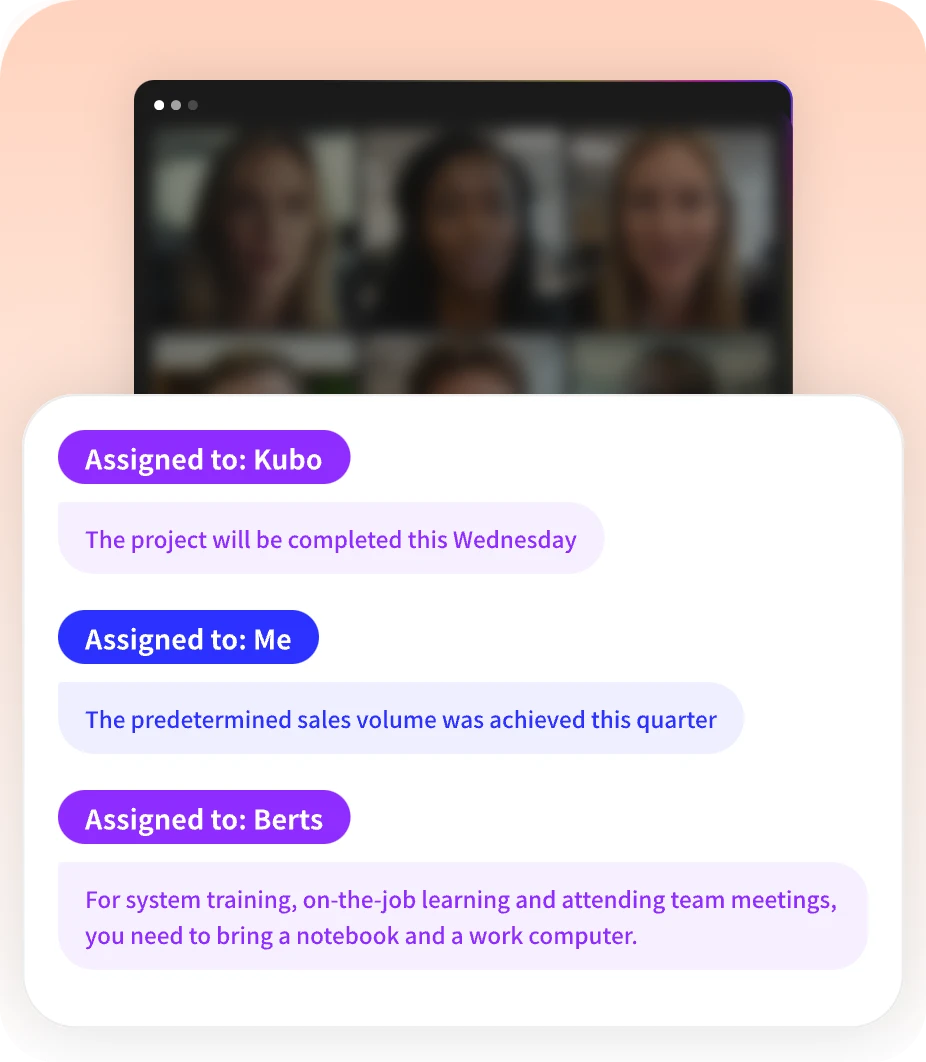
AI Summaries
 Action Items
 AI Chat
 Teams & Collaboration
 Teams & Collaboration
 Integrations
  Blog
Blog  Guide
Guide 



Don't miss your meeting insights!
Transform your meetings into actionable insights. Upgrade today and enjoy 60% off, unlimited shared notes, AI-generated summaries, and real-time collaboration.
 12,716+ Customers
Buy at Discount
 Meeting Notes
 Today only — Enjoy higher transcription accuracy, team collaboration, and full meeting history.Meeting Notes
 Remote & Hybrid Work
 Legal & Compliance
 Sales & CRM
 Healthcare
 Project Management
 HR & Recruitment
 Education & Online Learning
 Personal ProductivityToday only — Enjoy higher transcription accuracy, team collaboration, and full meeting history.
MeetingNotes strives to simplify the meeting minutes recording process, helping users quickly join live meetings and ultimately generate accurate meeting minutes and AI summaries.
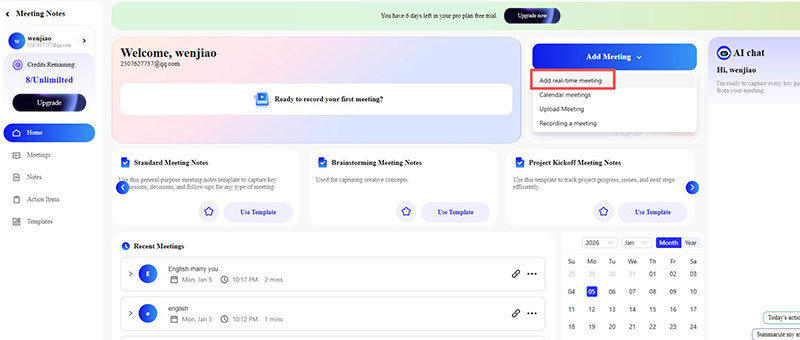
First, log in to your MeetingNotes account and access the control panel. Then, click the "Add Meeting" button and select the "Add real-time meeting" option from the drop-down menu.
After entering the "Add to live meeting" pop-up window, you need to fill in the relevant information for the meeting you want to transcribe. You can choose a name for this transcribed meeting according to your needs.
Then, in the "Meeting Link" option, enter the link to this Google Meet, Teams, or Zoom meeting.
Next, select the language you want to use in the meeting.
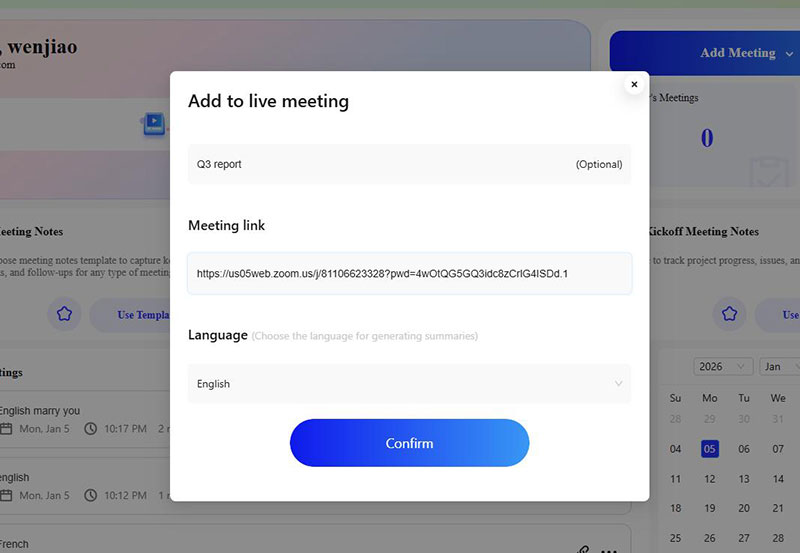
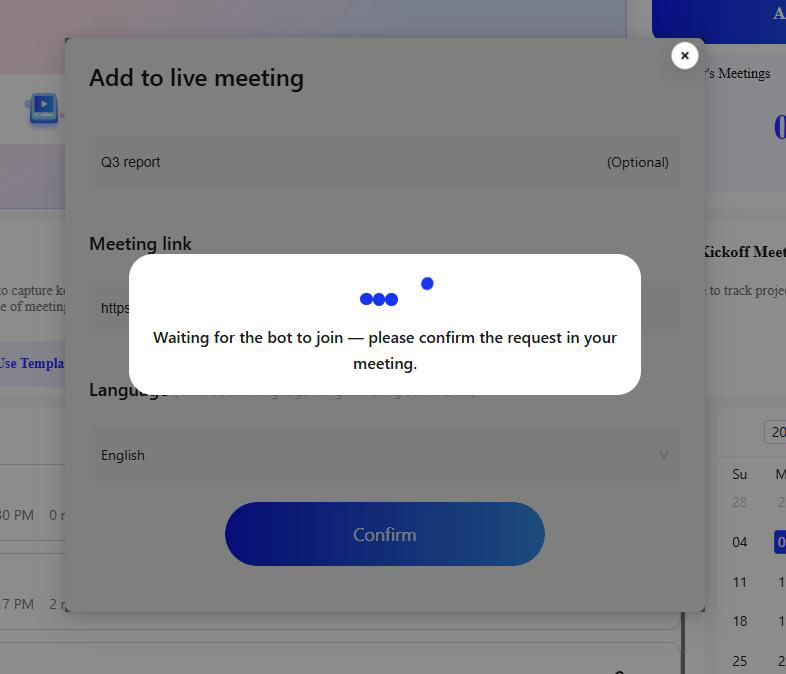
Finally, click the Confirm button and agree to allow MeetingNotes Taker to join the meeting to begin live transcription of the meeting content.
After the meeting, MeetingNotes will automatically summarize the transcribed content and generate an accurate AI Summary.