AI Summaries
 Action Items
 AI Chat
 Teams & Collaboration
 Teams & Collaboration
 Integrations
  Blog
Blog  Guide
Guide 



Don't miss your meeting insights!
Transform your meetings into actionable insights. Upgrade today and enjoy 60% off, unlimited shared notes, AI-generated summaries, and real-time collaboration.
 12,716+ Customers
Buy at Discount

 Meeting Notes
 Today only — Enjoy higher transcription accuracy, team collaboration, and full meeting history.Meeting Notes
 Remote & Hybrid Work
 Legal & Compliance
 Sales & CRM
 Healthcare
 Project Management
 HR & Recruitment
 Education & Online Learning
 Personal ProductivityToday only — Enjoy higher transcription accuracy, team collaboration, and full meeting history.
Notes is a feature provided by MeetingNotes that allows you to take notes during meetings. MeetingNotes offers many commonly used Notes templates, covering various scenarios such as client communication meetings and daily/weekly team meetings.
In addition, you can easily create, edit, delete, and even share Notes to collaborate on them with your team.
To learn more about Notes, you need to log in to your MeetingNotes account and access the workspace. Then, click on "Notes" in the left-hand navigation menu to go to the Notes page.
Click the "Create a note" button to create a new note.
To use a note template, simply click on the note template provided by MeetingNotes on the Note details page.
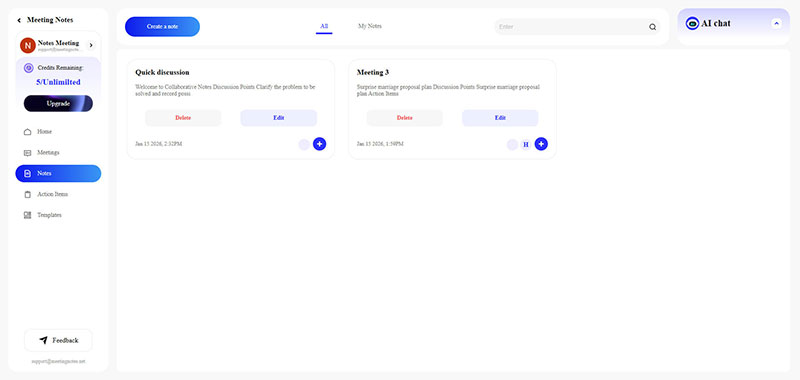
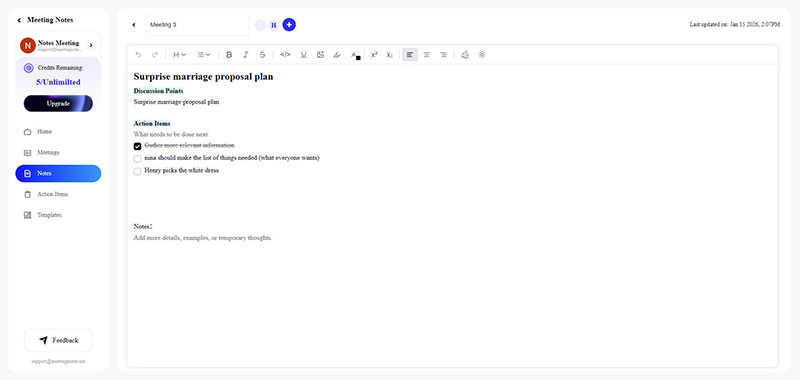
Select the note you want to edit, then click the Edit button on that note to access the note details page and begin making changes.
On the note details page, you can modify the note's name, use the editing tools provided by MeetingNotes to edit the note, and click the plus button to invite others to join and collaborate on the note with you.
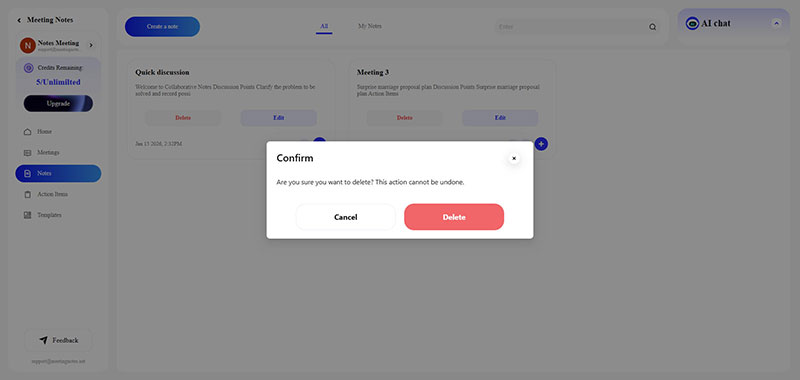
On the Notes page, select the note you want to delete and click the Delete button on that note. Then, in the confirmation pop-up window that appears, select Delete.
Note: Deleted notes cannot be recovered.
If you have too many notes, you may find it difficult to quickly locate the notes you need to edit, share, or delete. In this case, you can use the search function in the upper right corner of the Notes page.
Simply enter a word from the note's title to quickly filter and display all notes containing that word.
Categorizing your notes doesn't actually mean creating different folders to save your notes, but rather distinguishing between the notes you create yourself and the notes shared with you by others.
If you have any questions, please feel in touch with [email protected].